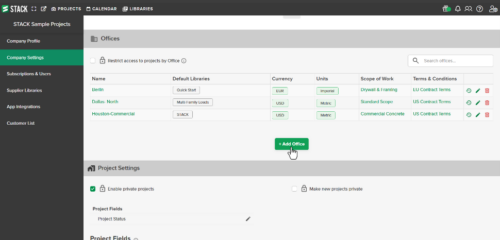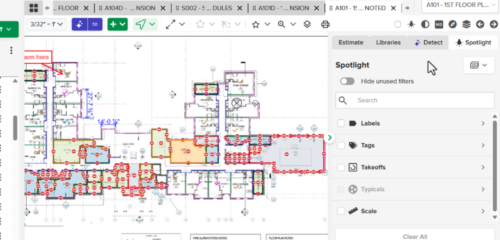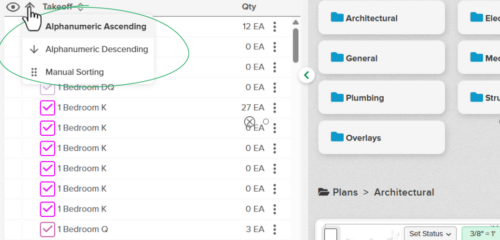




You can now edit Assembly Inputs like Item Group choices and values for custom variables directly inside the Estimate Worksheet. For more information, visit our Help Center.

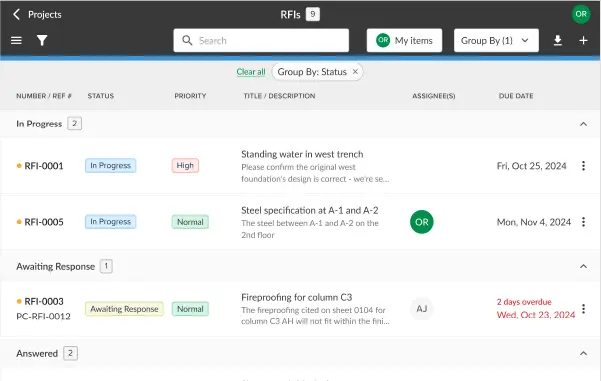
Evaluate new bid opportunities, search full plan sets, compare plan versions and more.
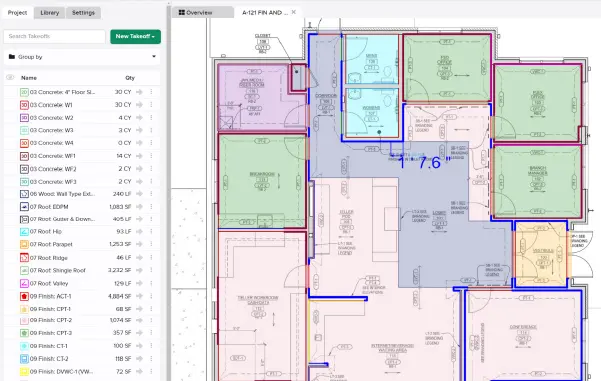
Calculate material & labor with quick and accurate digital measurement tools.
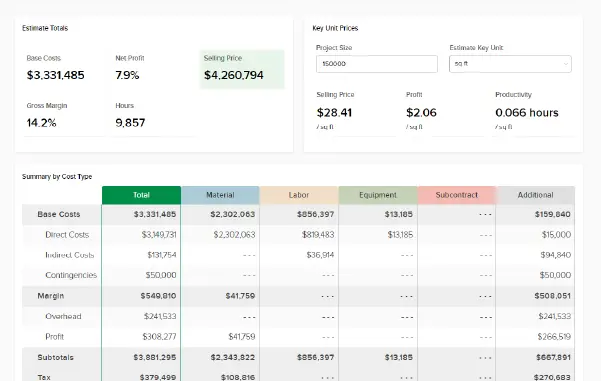
Leverage integrated items, assemblies and regional pricing to prepare winning bids.

Consistent estimating accuracy builds confidence, speeds up bidding, and drives more profitable wins. STACK customers are proving this every day with higher win rates and revenue growth.

Demotik, a super-subcontractor based out of Cypress, Texas, achieved 50-75% better productivity with STACK!
STACK's central hub for all the essential tools, insights and information you need to get started.
Welcome. Thanks so much for joining us today for the Stack for Excel webinar. We’re really excited to show you how you can connect takeoff and estimating directly to Microsoft Excel. This makes it just really super easy to analyze, calculate, and report on your project data using the Excel tools you already know while still keeping everything synced up and up to date automatically.
So with that being said, I’m gonna introduce your presenter today, mister David Fouche. He’s a senior project manager. He plays a key role in shaping features like this integration and making sure they truly support your workflows. And then I am Kate Dupuy. I’m our learning content specialist. I help users get the most out of Stack with just clear and practical guidance.
And last but not least, again, Stack for Excel. It’s used to integrate Stack directly into your existing h Excel estimating worksheets. And David is gonna take you through that. So we’re gonna get the ball rolling here.
I am going to add David to the stage here and spotlight him on. Take it away, David.
Hey. Thanks, Kate. Hey, everybody. I’m David Fouche, and I’m gonna kick off by saying I am an architect.
Yeah. So you probably just lost all credibility in me. That’s okay. I just wanna say that because what I’ve loved about my career is I was an architect first, and then I worked in construction.
Now I’m working in subcontractor and GC estimating, which is something it’s like, every time I turn around, there’s something new and now there’s even something newer, which is this cool integration with Excel. So let’s get started. I’ll show you what that looks like. So let’s, I’m gonna open up this project here.
Don’t mind this yellow bar. This yellow bar means that I, because I work at stack, I work in kind of a special environment. Now all I do that is for demos and stuff. So don’t get too freaked out about this yellow bar, but what I’m showing you here is a whole list of projects that you’re probably familiar with something like this.
You probably have a whole list of projects of your own. So that’s what I’m looking at now. This is in my, my, sort of special account you might say, right? Your projects are real.
Mine are fake right now, but I’m using them to give you kind of a sense of how this whole thing works. So let me tuck this aside for just a second, and I’m gonna open up this Excel file here. Now this is a template that is untouched. We deliver this directly out of Stack.
So I’m starting just as you would if you were to download this template from Stack. So we’re gonna open up Microsoft Excel.
This thing comes up. Now, this is intended to look like one of your estimates. So, you know, I’ve got permits and let’s say I’ve got, I know on this particular job, I’ve got two permits at, you know, five hundred each, let’s say, and I got twenty five or say two days of mobilization at a thousand dollars or something like that. I’ve got twenty five days of fuel at five dollars a day.
Also gonna have parking, let’s say zero inspections, or say, let’s just say we got two inspections coming in at one hundred and fifty apiece. You understand you might have sort of general conditions that you might add. Now so far, I’m just in Excel. So this is my Excel template that I use.
Down here. I’ve got overhead. I’m gonna change that to three point seven five. I just got direction from the, the higher ups profit margin.
We’re looking for seven point five percent on this project, but there’s no real numbers yet. Right? Because I’m just in my general conditions. That’s all that I’m quantifying from.
Well, let’s go ahead and connect this to our Stack Project to fill in all of the numbers. Okay? So, what I’m gonna do is follow my cursor here. See there?
I’m gonna come up here to this add in called Vellixo. Now Vellixo is how we do Stack for Excel. Stack for Excel, you could say is powered by Vellixo. Vellixo is an incredible company, that has made an incredible product that integrates Excel with a whole bunch of things, not just Stack.
So we’ll show you that in just a second. Okay. So the first thing I wanna do is connect my worksheet with my stack account. So let’s do that.
I’m gonna go add, I’m gonna go into that special environment that I told you about, and then I’m gonna hit connect.
Now what it’s doing here is it’s saying, are you really, you, are you really you David Fouche? I’m not really sure. Let’s just make sure you gotta log in here because we’re not gonna let anybody connect your stack Excel with, of course, we’re gonna, we’re not gonna let anybody connect in with, to, to, to Stack. We’re gonna make sure that it’s you. So we’re gonna log in properly here.
Okay, good. And then it says, all right, you’re gonna grant access so that Vallejo can integrate with your file, just this one Excel file. Okay. We’re making sure it’s very tight.
It’s just this one Excel file. So you’re going say, yes, I want to grant access between my stack account and this particular Excel file. Good. We’re good to go.
So now, here’s where the magic comes up. Up here, I’ve got a Choose Project thing. We’ve built this in. I’m gonna click look at that, all of my projects.
Now, let me go back here to this screen over here, and I’m gonna just show you to the side there. So I’ve got First Omaha Bank and so forth, First Bank Houston Nashville. If I click back in Excel, there are those projects. So it’s already seeing my projects.
I’m gonna choose Omaha, the new First Bank Omaha new construction.
It’s gonna wiggle and jiggle, you’re gonna see it kind of run around down here. It’s doing some calculations. And what it just did is it pulled all of my information from Stack, from that Stack file into this particular Excel sheet. Okay?
Now that may sound like just to make sure, if, if you’re concerned that maybe I already had this pre planned, I did not. I’m happy to go back and show you again, but all of these details here came directly from that stack project. So, let’s just do this. I’m gonna save this for a second. And then we’re going to, let’s see, let’s just move on. So what I can do now is I’ve got all my details from my materials. I’ve got all my unit costs that came from my items.
Right? I’ve got my no markup yet. So no markup percent. So let’s say I wanna add fifteen percent to this guy and actually I’m gonna do fifteen percent across the board.
If you notice, I’m just using Excel now. Right? I typed in fifteen percent. I double clicked here.
That made it all fifteen percent over here. I wanna override the unit cost. So let’s say we’re gonna make that three dollars So I’m typing in Excel where things have already come in from stack. Okay.
Like over here, I might say, I wanna override that quantity. Let’s just make it five forty. I’m gonna come down here to say this duct wrap and let’s just make that, four thousand one hundred. We’re gonna call it one point seven five dollars and we’re gonna change that percentage to, to, whoops, not that one.
I’m gonna change this to twenty percent. What I’m trying to show you here is that we’ve downloaded a bunch of information from Stack, and now we can add to it or alter it as need be. Okay? So you could do that with your material costs, your labor costs, however you want.
And now I’m gonna slide all the way over to the left side and just open up the proposal cover. If any of you have used our proposal out of stack before, this should look familiar. But the point here is that this could be unique to you. This could be your proposal, however you do your work.
Notice here, I’ve got my material, my labor, my additional costs, my taxes, my total, selling price.
And I did that in just a few seconds. Like, we’re only a couple minutes into the webinar. Right?
I could come back to the main worksheet and say, you know what? I’m gonna round the sell price up to one thousand dollars and I wanna run, I’m gonna round all my hours up to the nearest four hours. You should have seen some numbers change back here.
That’s not Excel magic, and that’s not Stack for Excel magic. That’s just Excel magic just by itself. And that’s the key. You can integrate Stack, and using Stack for Excel, you can integrate all your quantities from Stack directly into your proposal, and then you can augment that with, with Excel functions.
So like, look here, if you, if you change the, look at this one here, I have, it’s not just equaling the total. I’ve got Roundup material. The totals like I’m using this ex this special, Excel formula to get that number. Okay.
So let’s, let’s do a couple things here. I’m gonna come back to materials and just take a look at this. You know, I’ve, I’ve added some numbers here in blue. Hopefully, you can see them.
It’s kind of a light blue. But what I’m gonna do now is I’m gonna say, well, I’m gonna go back in to my stack project. Okay? And I chose the Omaha project here.
Let’s go in here, and I’m gonna look through here. And let’s say I’ve got this, and I’m gonna create a new takeoff. I’m gonna call it doors. Okay?
And I’m gonna add doors from my library. So doors.
Oh, let’s do that single door. We’ll add that. And let’s start measuring. So I’m gonna count, you know, all my doors here.
And just for quick demo, I’m just gonna count a bunch. I’m not really gonna get too worried about how many I’m counting here because you get the point. Right? I don’t wanna waste too much of your time. Now let’s do another count. I’m gonna call it double doors.
Looks like I’ve already got the name in there. We’ll create that one. Come down here.
Again, I’m gonna look for doors, and there’s my double doors. So let’s add that item to here, and let’s go count a bunch. So, of course, I’ve got one there. I’ve got one there. Let’s just add a bunch here, though.
Okay.
Just to say we had a bunch throughout the project. Great. So now I’ve updated my project, right? Now I’m gonna come back into Stack.
I mean, sorry, come back into Excel and I’m gonna look at the main worksheet. Let’s just take a look at that proposal. Twelve eighty seven. Okay.
Let’s keep that in mind. One, two, eight, seven. This is my project. Now I’m gonna go up to the Valyxo menu and say, Hey, let’s refresh all of that data, the entire workbook.
Okay. Because I know that I’ve made changes.
I know that I’ve added some doors and I’ve added some double doors. So I wanna see what the changes are. Hopefully, you’ve seen these numbers jiggle. Right?
That’s because as it’s pulling in the new data, the new doors that I just, found, it’s pulling those doors in. Let’s go look at the proposal cover. You see that went up one two nine eight. Let’s go back and look at the materials here.
So here I’ve got doors double and doors single, and those are pulled in. But notice also that this thing, these items, I had done before, stayed with their items. Right? So these changes I made that three dollars stays with the anchor bolt.
So what that means is you can integrate your stack data into your Excel file. You can change things in your Excel file. You can add percentages, go up and down, like, look at these two double doors. Don’t have any percentages.
Right? So let’s give them a, a, a markup percentage of twenty percent. Right? Cause they didn’t have that before because they, they weren’t there.
Now you can bring in your stack data, adjust your pricing, your overrides for your quantities, markups, whatever you want. Then you can go back and change your project again.
You could add labels, you could add more takeoffs, more measurements, and then download that data again, and you can update your worksheet here. So, proposal cover is gonna change as you go. Alright? So, that’s it in a nutshell.
Let me summarize. You create your own Excel file for estimating, and then you integrate your stack data with Stack for Excel. And then you add whatever Excel functions you want to keep this data married and put together. Okay?
And you can keep using this. You can keep updating your projects.
But one key thing I didn’t point out yet is although you saw me go into Stack here, right? You saw me come into Stack. Your estimators wouldn’t have to do that. So you can have an estimator come in and only be working in Excel where they’re happy, you know, where they’re, where they’re, comfortable.
And you could have a different team doing all of your measurements and your takeoffs. And what what the estimator can do is pull whatever data they want whenever they need it. Okay? So let me close this out because I’m gonna stop that part of the demo right here.
We’ll save this file. We might come back to it later. And let’s dig in a little bit more on how this actually works. So we have two templates that you can use and you can create your own.
These templates are just to get you started. So I’m gonna open up the second template and we’ll show you how this works. Okay?
So first off, this template has nothing in it. Right? So if I just let me just walk through. You’ll see there’s no data.
All of these say value because there’s no values because I haven’t I haven’t connected to Stack. All of these are empty. Just kinda showing you that how all of that works. Okay?
Even the lookups are empty here. So let’s go back to the basics. Now what the first thing you’re gonna do is you open any Excel file or one of our templates. You’re gonna open it, and then you’re gonna connect it using Alexa.
So I click the Alexa, and I’m gonna connect this to my stack project. So in this case, I’m gonna, connect it back to that same environment that I was talking about before. I’ll connect. You would connect to your account.
Right? And so I was let’s say connect here. And notice it’s asking me to log in again. It’s like, I don’t know who you are.
I need to make sure make sure you’re not pretending you’re David Fouche. And then it says, although you’ve already logged in before, I need to make sure that you want, that you actually want to connect this other, this other file to Stack. Right? So now this separate file that I just opened is now connected to my Stack account.
Great. Now I’m just gonna pause for a second. It’s gonna refresh the entire workbook.
Woah. I’ve got a list of projects here.
If I come here, now these are still blank. Right? Why are they blank?
The main reason they’re blank or the only reason they’re blank is because I haven’t chosen a project yet. So let me go to the playground tab and show you how it works really simple. In Excel, you can type in equals. You should be familiar with this.
Right? So let’s say I had two. Let’s say I just over here, I had two and then I had three. I could say equals this cell times that cell.
Right? That’s a standard thing in a in a in Excel. And you could do that. It would give you the the six you know, two times three is six.
You could also say, let’s, round.
And then you give it a number, thirteen point four, number of digits, say zero, and you could do that and it would round it to thirteen. Right? So that equals round is a standard nomenclature, the equals, and then some sort of a function that’s standard in Excel.
Let’s see how that plays out with Stack for Excel. You type in equals and then you type in stack. So you’ve got a bunch of stack functions just like you have Excel functions. Right? So I’m gonna come down here and say, wow, let’s see what which one do I want here?
Well, let’s do project let’s do expand project range, which will tell me give me a list of all of my projects. Okay? So we’ll do that one. Expand project range.
And then it has a whole series of arguments. These arguments are just like Excel. Excel has the same thing. They have got arguments.
So if you’re familiar with Excel, you can use stack for Excel and it’s the same kind of a nomenclature. So what am I gonna do here? Well, first I need my connection name. All right.
You don’t know this, but I happen to know that the connection I made was called stack. Okay. And I’ll show you how that works in just a second. So I’m connecting to stack and then I need a project.
Oh gosh, I haven’t picked a project range yet. So I’m just gonna say that’s all the arguments I need is that connection. Look at that. There’s all my projects.
Okay. So all I did was stack. ExpandProjectRange. That’s function.
This is the only argument I need to get my full project range, my list of projects. Okay. All right. Let’s delete that. Let’s come back to here.
And let me show you a couple of things. So up here in Vellixo, I’m gonna click connection manager. See how I’ve got this stack?
That’s the name of that connection. That’s how I knew that it was it was a stack. I’ve actually written that up here and I gave it a name, SFX condom.
That’s just Excel. So I wrote Stack, which is my connection name, and I gave it a name in Excel so that I could reuse that over and over and over later throughout my workbook. Okay? Now you might say, why do you need a name there? Well, because check this out. I can say add, and there’s a whole bunch of other systems I could connect to. So for example, if you’re using Microsoft Dynamics, you could make two connections from this one worksheet.
The first connection would be to Stack account.
The second connection would be to your Microsoft Dynamics.
You start to see how this could play out? You could pull data from Stack and send it to Microsoft Dynamics. You could pull data from Stack and send it to Sage Intacct.
Okay. Great. So let’s just let’s keep moving on here, though. So here, I’ve got the connection name named Stack.
Here, it says choose a project. All I’ve done here is this. I’ve set up in Excel a dropdown that’s a named range that points to this list. Okay.
So I could say pick any project I want. Now, once I pick a project like First Bank Omaha new construction, that’s the one we just looked at, a whole bunch of stuff. You see this, all of this wiggling and jiggling down here, Vellixo functions are calculating because the rest of my, tabs here are you have functions that are leveraging this project name. Notice that the project I chose is SFX Progyname.
So I am going to use that name throughout the work bit. Now look here, Project Data. Now these things are filled in. I have got my plans, list them all my takeoffs.
I’ve got some tags here, some labels, the tag values for tag estimator, the label values for label phases. I’ve got my cost types, full takeoff report, Full Item Report.
Now, in this case, I’m gonna get a little more tricky and say, I’m gonna create a table, a Takeoff Report based on a given sheet. So just show me the Takeoffs on this particular plan.
Ta da!
Get quantity by plan and takeoff. That’s a little more complex. So now we are going to do an item cost report and we are going to say choose, let’s say, this plan.
Right? And then I’m gonna choose a given takeoff. Let’s just look at double doors. Well, there they are, the labor and material, I got eighteen of them.
So you can kind of filter this any way you want. It’s so powerful. If you wanna do it by tag, let’s say I just wanna look at trade.
And for trade, I wanna just look at electrical.
There’s just my electrical stuff. And that’s using a tag inside a stack and the tag value electric. My playground, we give you this just to sort of play around. These lookups are functions that are using to pull data so that I can use them elsewhere throughout this template. This whole Excel file is simply meant as a training ground for you to learn how these different functions work. Okay?
So this is Hey, David.
Yeah. Yeah.
I’m gonna interrupt really quick. This may be a great question to ask. Sure. We had a question come in, and it says, if you add labels to your project, is there a way to separate them in different Excel, you know, in I guess, in different Excels to give different prices for every label? So for example, he says, I want to separate a roof in five different sections and give a separate price for each section. Are you able to do that in Stack for Excel?
Yes, a hundred percent. And that’s a great question. So over here, I pulled it out by a given tag, but this, you could do the same thing by label. So let me show you how this works.
That’s a great introduction to how this works. So this is an item cost report. So, that’s the function here. Okay?
Then I’ve got my connection name as an argument. My project name as an argument. Then I tell it what I want to be in my table. Okay?
So, that’s this whole thing there. Right? Now, check this out. As I move my cursor to the right, I could filter it by cost type.
I’m gonna move it to the right again, by takeoff. I’m gonna move it to the right again by plan. So you could get the report on just a given plan item or tag, or check out this, this last one over here, down here is gonna be label. So what you could do is if you had a label for roofing, say zone one, zone two, zone three, you could filter out in right there, choose the label value that you wanted.
And actually the syntax would be very similar to this because this syntax is for tags, and so it would be very similar for for labels. I don’t actually have an example live that I can show you right now, but we’ve got a couple of great experts who understand this. One of them is Garrett Hume, he would be happy to help you and show you how this works. Okay?
But absolutely David. Do that by label. Yeah. Sure. Thanks, thanks, Kate. I actually was gonna pause here and to see if there’s any any, initial questions that we wanna go through before I show you some of the more complicated features that we can do.
Yeah. There are a few questions.
Okay.
Someone is asking, are there templates on our website?
Oh my gosh. Did somebody pay this person? I love you. Let me show you how this works.
Five dollars to whoever asked that question. I’ll Venmo you or something. So, if you just go up to Help and you do Help online because that was gonna be a part of my demo and you just prompted me. If you just go to Help let me show you that again, make sure you don’t miss it.
Up here in the question mark, click that go to online help. Okay. That’s gonna open this page. All you gotta do is type in Excel.
So I’m teaching you how to fish instead of, giving you a fish, right? Here it is. Stack for Excel powered by Valyxo. It gives you everything you need to know about how to works. And if you look right here under templates, click on those templates.
And we’ve got two templates you can download right here and a short video showing how to use one of them. See that? Does that look familiar? That’s the one I’m demoing today.
Okay. So you can download that. And then there’s some more features and it just shows you how all that works. So then down here at the bottom, there are some useful Valyxo links.
So you can actually go to let’s click this. That’ll take you to Valyxo. So there’s that company we’re partnering with, and that shows you some more help for working inside of Valyxo. Okay?
So yeah, you can absolutely download those two templates. Just click on this button right there, that link right there, Stack Templates, and pull them down. These are the two templates I’m demoing today.
Have another one. Yeah.
I have one. I have about two more. So can this produce a budget category such as material, labor, subcontractors, and overhead?
I’m sorry. Say that one more time, Kate?
Could you Yeah.
Can this produce a budget categories such as material, labor, subcontractors, and overhead?
Absolutely. So, let me pull up the other template. The first one I looked at, this one is this, estimate.
This is the one we were looking at earlier in the demo. See down here, says details material.
And if you look at my cost here, I’ve got material and labor. So in this template, I only set up a, one tab for materials and another one for labor, but absolutely I could create another one for subcontract and for equipment. No problem. So like here, let me show you how this works. In the lookups, here’s the function to create the item cost report for materials. And what I’ve done here is said I wanna use material as my cost type.
Right? So see that it says cost type, the argument is material.
And I’m saying, I wanna put it on this tab in that particular place, which is A1. So that’s detailed material A1. All of that is basically Excel. So what I could do is open up a second sheet here. Let’s drag this over. I’ll rename this and call it, equipment. Now I don’t know if this one’s gonna populate with any equipment because I don’t remember if I have any, but let’s look at the lookups and let’s just say we want an equipment report.
Hopefully, my so I’m gonna copy that, paste it here. But then so I’m gonna use the exact same thing here, but instead of labor, I’m just gonna type in equipment.
And now what it’s doing is it should be pulling all of the data unless I missed something. Yeah, we may not have any equipment in this particular file. That’s why I’m not getting what I was hoping to get.
So let me just see here real quick.
So if I go to equipment, there’s no table because I don’t have any equipment in this particular file. But that’s the lomenclature you would use in this project. So you would just type in equipment, as your cost type. Okay.
So yeah, you can do material, labor, equipment. You can format it over here. Most of what I’m doing here is Excel work. All of this is in Excel all in, but really the, the stack for Excel comes in right here and right there. Those two functions right there are the ones who pull the data and create the, the material and labor. So hopefully that answers that question.
Awesome. I have one more and then you can continue. Can this create a task list or schedule for work employees in the field?
Well, what this can do is pull any data out of Stack. So if that’s the main purpose of Stack 4Excel is to grab the data that you’ve done in stack, and download it into an Excel file and keep it live, connected back to your project so that you can then, you know, format it however you want. So what that means is as far as a task list for your people in the field, if you have created that in stack, or if you have data in stack that you want to download and then, and then provide as task lists. Absolutely.
Typically that data would be organized by tag, by takeoff, or by label. So if you had your data set up in your project that said, you know, this is the task list or these are the people, and this is how we wanna structure it for work in the field, you could definitely pull that data and then reformat it here in Excel.
Hopefully that answers that question.
Awesome. Thank you, David. I also want to let y’all know this is going to be recorded it will be sent to you. I have a few questions regarding that. But, yeah, go ahead and continue, David.
Okay. Great. Thanks, Kate. So let’s get in a little bit more into some of the weeds here just so that you can we make sure we understand how this is working and how this can work. So if you look at here, look at this really complex formula, Excel. Like that’s massive, right?
That’s a pretty big formula. And you might say, well, gosh, that looks really complicated. And the point is, yes, it can be complicated. It can be super, super complicated. Let me though come over here and I’m just gonna use a very similar one, which is a stack expand project range.
Okay. And I’m gonna use SFXCONN, which is my connection name.
No way, it didn’t like that.
Sorry. Hang on. SFXCONName. That’s what it is. Okay.
Oh, I didn’t type it all the way. Sfxconname.
There we go. Okay. So see how simple this one is, this function? Stack. Expand projectRange with an argument for the connection name. Over here, we are getting the same list, but this one has all of this other stuff in it.
You might say, what’s that for? Well, it gives you options. So let let me give you show you how that might work. Let’s say you wanted to limit your list of projects to just say project status. So I’m gonna click here and say, just wanna look at the ones that are in progress.
I guess there is nothing in progress right now in that particular job. Just the ones that were bidding is really a better one. So I chose the status of bidding, and now the list is really short. And the really reason for that is right here, we have project status as a as an option.
And so what I’ve done here is say, I wanna limit my project list to just those projects that match the project status field. And the project status field is bidding. So if I change this to lost, let’s see if we’ve got any lost value. Don’t think we do.
Let’s we might have on hold. I don’t know what other status we’ve got on this particular let’s try one.
Oh gosh. We haven’t won any yet. I guess these are the ones in progress. And probably the other ones don’t or, are bidding and probably the other ones have none.
So if the if that we have some that don’t have any progress or have no, status, you know, we would just hit delete. But that shows you how to how you could, filter that. Let’s look at another one. I only wanna look at bid range, say, October first, right, and see how it limits that list.
And let’s say from October first to November first or say October first to October second.
There’s only one project that fits that criteria of these two bid dates. And that’s bid date two or from and bid date two. So down here, I’m using bid date from and bid date two, which are these two things there. There’s another way to do this too. So we’ve incorporated more language in this particular, like this whole thing here.
What that’s doing is saying, take a search. I only wanna find the ones that have bank in the title. Or I wanna only wanna find the ones that are in Omaha. Right?
So there it looks like there’s two of them. Two of them in Omaha. And so you could search. All of this is just Excel magic.
So that’s kind of what I wanted to show there. And then if I go into, say, the takeoff report full, let’s see how this was created. If I go back to basics, I’ve got a takeoff report. What I’ve done is said, take the stack. TakeoffReport with the connection name and the project name.
No arguments. No other arguments, but I gotta tell it what project. And then this says, put it on a different tab at at cell A five and make it a table. So let’s go into there.
So that’s this tab. It’s put into A5. What’s special about a table? Well, if you know anything about Excel in a table, you can say, I just wanna look at certain things.
So let’s say I only wanted to look at takeoffs, that had concrete footing in it. It.
Right? So you can filter this in a table.
You can also, in a table, include there’s all kinds of things you can do up here in the table. So you can say, for example, in the table design, I could click on this table and say, want it to look like this or that or that.
You could do a first column, last column. These are important. You can do the banded rows or not.
So there’s a bunch of options within a table that you can use that phenomenally helpful.
And you can play with those in Excel. These are all Excel functions. So by putting it in a table, it gives you more options for that.
Let’s go to Quantity by Plan. Now, what I’m doing here is saying I want the takeoff report.
Then the arguments are connection name and project name. Gotta have that, right? This is the list of columns that I wanna show in my table. So I don’t want all columns.
What I want is takeoff name, takeoff description, the quantities, and I want to sum that up or aggregate it up and then the unit. So that’s why I only have four columns there.
And then no argument for the takeoff itself. Like I don’t want to filter by takeoff, but I do wanna filter by plan. See how that says plan? So that’s why when I choose here, if I choose a different plan, this grabs that plan choice, which is A on eleven, Reflected Sitting Plan, gives me the takeoffs for just that one.
So it’s super powerful. Like you can take any just about any way you want to filter or organize data, any way you want to say, I just want to use this takeoff or just show me the takeoffs on this sheet, this sheet and this label, tag, whatever it is. This basically how the nomenclature works. Here’s an item cost report.
So equals stack item cost report. There’s the connection name. Always got to have that, right? Always got to have the project.
And then these are the columns that I want.
So I want the item, its description, cost type, a sum of the quantities, and then the purchase units. And that’s what I’m getting here. And then I don’t wanna I have no desire to filter by cost type here.
But then I wanna do just a certain takeoff. In this case, it was double doors. So I’m getting all the items that are attached to double doors.
So let’s say I took a different one. Let’s say I did the interior walls.
There’s lots of items or several items attached to that one takeoff interior wall. So I’m getting all of the items, but just for that one takeoff, just on that one plan.
Right? So I don’t know how you would want to filter your data, but as an estimator, you can pull whatever you want and reorganize the data however you want.
So that’s kind of it. That’s like as deep as I think we should go. I’m happy to take questions. We got another twenty five minutes. We can also do a little bit of training. If anybody wants me to kind of walk through this from scratch, we can do some of that.
But Kate, let me know what you have.
David, we have a few more questions. Great. We do have a few questions regarding cost. We’ve had about five, so I’m gonna let you kinda take the reins on that as well.
Sure. So what’s gonna happen is now this is the good news. I’m the product guy, which means I help design the features, but your account managers are gonna reach out to you after this call, and they’ll discuss pricing with you and how all that works. Okay? So I’m gonna stay out of that and let them handle that for and discuss that with you.
Perfect. We have three more questions. One is, can you add in marked up drawings as part of the proposal cover tab?
As part of the proposal cover tab. So let me I’m gonna assume that you mean in the estimate template that we worked. So that’s this one.
Now I don’t know exactly what you mean by marked up drawings.
What Zach is pulling from, and if if you wanna post your question as kind of a follow-up to let me know what you’re thinking. But what this table here does, this materials table is pulling all of the detailed material materials, and this one is pulling labor for all take ups for anywhere drawn measurements. Okay? And in this particular estimate, I’ve not filtered out by any sheets.
I’ve done all sheets. So you’re getting the full blown all measurements inside of your stack project. If I go back into here, see if I’ve still got it up somewhere. Yeah.
So if I come back to No, I don’t have it up anymore. But if I were to go up into one of my projects, this is a different project, but it’ll make sense to you. So if I go into here, for example, and I’ve marked up You see I’ve got a bunch of drawings and I’ve got a bunch of measurements here. So it’s gonna pull all of these measurements throughout this entire project, and that’s getting pulled into this into this Excel file.
So I’m not sure exactly what you mean by markup.
Marked up drawings.
Kate was referring to the marked up sheets so that I could add them as a report to send to the customer.
Ah. So if you need to pull those sheets, like the actual drawings, then I would do that out of You’re gonna get the numbers here in Excel, but then you would come up here and you would print these plans from here. So you could say, I’m gonna download all sheets, or you can print them with all of the measurements and mark And that way you have a PDF that you can attach to your Excel file and print out and send to your customer for sure. But that you would do here in Stack. What the Excel file does is only pulling data, no graphics.
She said thank you. That’s perfect.
You are absolutely welcome. Okay.
We have two more questions. One is, could you please elaborate on the connection with ERPs?
Gosh, I wish I could. I would love for us to follow-up. All I can see. Cause I don’t know that side very, very well. Here’s what I do know.
Valyxo is a pretty, pretty solid up and coming. I mean, they’ve been around, but they’re growing quickly. And so when you add a connection, you’re able to add a connection to any of these systems here. And of course you can see they keep adding systems because they’ve added stack and you probably will see more in the future, but let’s say, let’s say you wanted to connect to Acumatica or to Sage.
So what you could do is use Excel as your bridge. And I can’t really demo that because I’m not prepared to do that, but you could, you could download your data from stack wrangle it the way you need to using stack for Excel, functions or really the Lexo functions. And then you can send that to Acumatica or Sage. So their integration with Acumatica and Sage is a read and write.
So you can pull data and you can also push data into Acumatica or push data into Sage Intacct.
I’m hoping that by January, we will have a really solid demo to show you how that works. But I just don’t have that today.
Hopefully that answers enough. And if you, I tell you what we can do. If you’re super interested, we can certainly, connect with the Valyxo folks and and get a kind of a dual see if they can help us out with getting a dual demo in the meantime before Christmas.
Perfect.
Okay. We have some more questions coming in. Great. Where can we find the manual for all of the functions on Stack for Excel?
Great question. So I’m gonna go back here to this help article.
Okay. But let me start from scratch to make sure you can follow along because I’d rather teach you how to fish, as they say. So, you’re gonna go up here and stack to the question mark. You’re gonna go to our online help center.
When you get there, just type in Excel. That’s probably the easiest way to search for.
And you’re gonna look for Stack for Excel. These are other, you know, these are other Excel, hits, but what you want is Stack for Excel.
What this gives you is from our side, how do you Stack for Excel inside of, you know, when you’re connecting with Stack, there are templates here, but then at the very bottom, useful Valyxo links. So Valyxo is the one they’re the company that actually.
Writes the code for all of this. They’re the ones who have, have created the app for this. So if you create, if you click either one of these links, it’s going to take you to their site.
And in their site, there’s a whole set of like tutorials, a full blown documentation of all of the different functions that they have, that they’ve developed for us. So you might click here on functions, query functions. There it is. And you can go through and look at all of them and see how they work. Okay?
But having said that Excuse me, I got a little bit of cold here. Having said that, I will urge you also to start with our sorry, this functions example.
This function is the example which I showed earlier.
We’ve kind of set up most, if not all of the functions that they have as kind of an example. So if I go here, I’m gonna have to recreate my connection here. So let’s do that real quick.
I’m sorry, give me just a second.
Good thing it’s having me re authenticate, right? It’s a new file. So we’ll let this thing jiggle. Let this thing refresh. Let it get all of the so let me pick a different project. Let’s go down here to StayRidge Suites.
Let’s use the template project. Okay. So once I click that, you could connect this to any project within your account. It’s that quick, right, as soon as you do all of that. And then see here, if I click here, this is meant to be an example. It shows you how that works.
And this one shows you how to use the ExpandTakeoff range. This one shows you how to use the ExpandTag range. This one shows you how to use the ExpandLabel range.
This one here is the Expand Tag Value Range, which says, given a certain tag, what are the available values for that tag? For here, given a certain label, what are the values available for that label? What are the cost types in this particular project?
You go to here. Well, it actually starts here, but this shows you how to use the item cost report and how to put it on a table.
This shows you how to do the takeoff report. You get my point. I’m walking through a lot of these, but most of these should give you how I think almost all of the functions work. So, this is kind of a good workbook to work from. And then definitely go to their site for all of the detailed syntax for all of these.
Hope that answers your question. Know it was a long winded answer.
Perfect. Thank you, David. Okay. A few more. Can you customize the items on the details materials tab?
Absolutely. So let’s go back to the I’m gonna save it this time. So in the estimate template, which is this one.
Now remember, I would expect you all to set up your own templates. You’re welcome to start with this, of course. So this details material, what this is trying to do is show you how you could use it on a real estimate. So you could customize this however you want.
In fact, I used Excel. I used Vellixo, the stack for Excel to create this. And then I added this comp this column, this column, this column, this column, this column. I gave it colors.
You know? And I even I don’t think I did any filtering yet, but I did all of that. So this is already a customization from the what you get out of the box. I do know that if you, that we can give you some training.
You can talk to your account manager about that. So if you, depending on what exact customization you’re looking for, I will say that one of our professional services guys recently set up a template that has, is pretty amazing. He’s got all of your takeoffs on the left side, and then they’re organized by label value across the top. I guess you’re not seeing me, my, my, my, my, you’re not seeing my face.
So I was trying to show that on the camera, but basically if you could imagine, you had like floor one floor, you had your takeoffs here, and then you had your quantities for floor one quantities for floor two quantities for floor three, four, and all of those were label groups. And he was using stack for Excel to create that template for a customer. So I think that’s, just about anything you wanna do. It’s highly customizable.
Awesome. Two more questions. So how does this integrate on the AI features Stack has been rolling out with?
Well, there’s no direct integration. What other than the AI features that we roll out help you ultimately, what you’re trying to do is get to an estimate. Right? And one of the key pieces of getting to an estimate is understanding the scope of work and then drawing a bunch of measurements.
You gotta measure a bunch of stuff, what we call takeoffs, right? So you create a takeoff for flooring or carpet or whatever it is, and you draw, draw, draw, and you draw these, all of that stuff. The AI that we’re developing helps you find that scope of work. And then it’s gonna help you find, you know, label and number your sheets.
It helps organize your job. And then it’s gonna help you actually do a lot of those measurements. Once those measurements are created, made possibly using the AI tools here in Excel, you can download that data and then proceed to get to your estimate. So if you think of, Hey, we’re gonna do this job.
That’s that step. That’s like at, at the beginning, that’s A and Z is getting the estimate, you know, proposal like this guy out the door.
There’s a bunch of steps in between there. AI is helping you with the measurement side and the organization side. This will help you get that data out of stack and into Excel so you can get to that final number. Hopefully that helps. Hopefully that answers your question.
Perfect. Thank you, David. And then last but not least, can Stack for Excel be incorporated into Procore?
I don’t know how or what that would look like. What you’re, what you’re specifically I’d have to know more about. So you take stack for Excel, you take Procore, like, what are you expecting it to do? What again, what stack for Excel is trying to do, or is helping you do is pull data out of stack, keep it, keep it connected to stack though, not just a dump.
So you keep it connected and update an Excel file. Now that Excel file could absolutely be integrated with, or sent to Procore. So if you wanted to store it in Procore, you could probably do that. If you needed to somehow send this data to Procore, I’m not as familiar with how you would integrate between Excel and Procore.
Maybe the best way to think of it though, is Stack for Excel really is a bridge. It’s like this invisible bridge between Stack and your Excel file. So that’s its role, is to create that bridge between the two.
So if you’ve then got a bridge between Excel and Procore, that would be a separate bridge. Vellixo folks, maybe they’ll develop something in the future to integrate with Procore. I don’t know that for a fact, but you may have other ways of doing that. So I don’t know if that really helps.
If you need more information, talk to your account manager, about what specifically you’re trying to integrate with, and hopefully we can get you some help there to answer that question better. These are fantastic questions. I like super detailed and complicated and almost like blowing my mind. This is fantastic.
You so much for that question.
That’s gonna wrap it up, David.
Okay. Well, I don’t know what to say other than, to help conclude, just that there’s so much flexibility here. If you get started, all you’ve gotta do is download our templates, click this little button. Well, you’ve to install Valyxo. So, you’re going to install Valyxo.
And then once you do that, you just set up a connection. Once that connection is set, all the data can flow. You just use Excel functions. Like I said before, you’re going to type in equal stack and there’s your functions and you choose the one you want.
And if you need any help, you reach out and we’ll give you some help.
Yeah. Awesome. Thank you so much. Thank you all for attending and remember this was recorded and we will be sending you the recording. Everyone have a great day.
You can now edit Assembly Inputs like Item Group choices and values for custom variables directly inside the Estimate Worksheet. For more information, visit our Help Center.
Sign up for our Newsletter and get all the info right to your inbox.


Need a more custom solution? Talk to us →