


|
STACK MCP

STACK Connector for STACK IQ

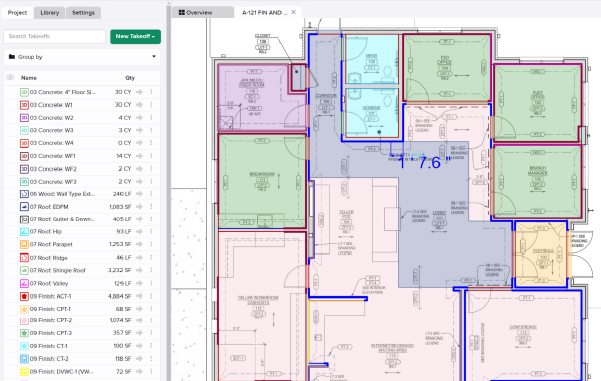
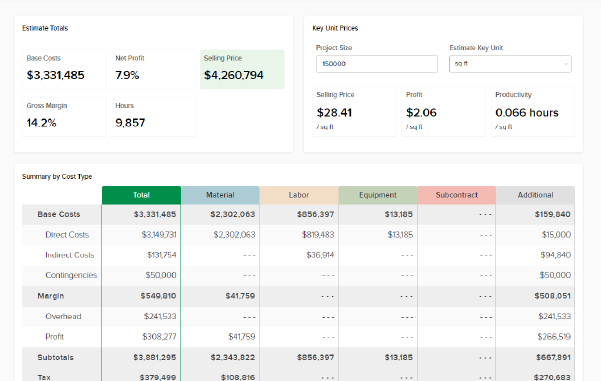
Connect your AI assistant to STACK and work with your construction takeoffs and estimates just by asking in plain language, with no code and nothing to install.

Learn more about STACK IQ.

How it works:

STACK IQ links an AI assistant, such as Claude or ChatGPT, to your STACK account. Once it’s connected, you can ask your assistant to find, review, create, and update work in STACK on your behalf, and it acts using your own STACK access.

STACK IQ is built on the open Model Context Protocol (MCP) — the standard for connecting AI assistants to the tools and data people already use. Because it follows that standard, the same STACK connection works with any MCP-compatible assistant.

/
REQUIREMENTS

Before you connect, you’ll need:

A STACK Account

Just sign in with your normal STACK sign-in during setup. You don’t need developer credentials, and there’s nothing to install.

An Account with an AI Platform

STACK IQ works with your preferred AI assistant, such as Claude, ChatGPT and more.

Where and How to Connect?

STACK offers one connection that works across MCP-compatible AI assistants, including:

How to Connect:

  1. Open STACK’s listing in Anthropic’s connector directory and choose to add it. You can also reach the same listing from Claude’s own connector settings by browsing the directory for STACK. If the directory isn’t available to you, choose ‘Add custom connector’ in those settings instead and enter the connection URL: https://mcp.stackct.com/mcp
  2. Claude sends you to STACK to sign in.
  3. Review the STACK approval screen, choose which capabilities to allow, and confirm.

Claude is now connected to STACK and ready to use.

How to Connect:

  1. Open STACK’s listing in ChatGPT’s plugin directory and choose ‘Install plugin’.
  2. ChatGPT sends you to STACK to sign in.
  3. Review the STACK approval screen, choose which capabilities to allow, and confirm.

ChatGPT is now connected to STACK and ready to use.

How to Connect:

Any assistant that supports custom MCP connectors can connect to STACK.

Add a new custom connector in that assistant using the connection URL: https://mcp.stackct.com/mcp

Then complete the STACK sign-in and approval when prompted.

How to Connect:

  1. Open STACK’s listing in Anthropic’s connector directory and choose to add it. You can also reach the same listing from Claude’s own connector settings by browsing the directory for STACK. If the directory isn’t available to you, choose ‘Add custom connector’ in those settings instead and enter the connection URL: https://mcp.stackct.com/mcp
  2. Claude sends you to STACK to sign in.
  3. Review the STACK approval screen, choose which capabilities to allow, and confirm.

Claude is now connected to STACK and ready to use.

How to Connect:

  1. Open STACK’s listing in ChatGPT’s plugin directory and choose ‘Install plugin’.
  2. ChatGPT sends you to STACK to sign in.
  3. Review the STACK approval screen, choose which capabilities to allow, and confirm.

ChatGPT is now connected to STACK and ready to use.

How to Connect:

Any assistant that supports custom MCP connectors can connect to STACK.

Add a new custom connector in that assistant using the connection URL: https://mcp.stackct.com/mcp

Then complete the STACK sign-in and approval when prompted.

The exact menu names vary a little between assistants and change over time, but the flow is always the same: add STACK in your assistant’s connector settings, sign in to STACK, and approve the access you want to grant. You sign in on STACK’s own secure page — your assistant never sees your STACK sign-in credentials. Behind the scenes this uses standard OAuth 2.0 — your assistant is granted a limited, revocable access token, never your password.

Depending on your organization’s settings, an administrator may need to approve the STACK connector before you can add it.

Troubleshooting

Make sure the STACK connector is added and turned on in your assistant’s connector settings, and that you finished the STACK sign-in and approval step. Some assistants need you to start a new conversation after adding a connector.

The connection isn’t complete until you sign in to STACK and confirm the approval screen. If it didn’t appear, check for a blocked pop-up, then remove the connector and add it again.

You may have allowed read-only access. Reconnect and approve the creating-and-updating capabilities on the STACK approval screen.

Reconnect STACK from your assistant’s connector settings and complete the STACK sign-in again.

Need help, or have a security concern? 

Contact STACK support and mention that you’re using STACK IQ.

Shopping Basket

Which solution are you looking for?

Takeoff & Estimate
Calculate everything you need anytime, anywhere.
Build & Operate
Seamlessly link your data from the office to the field.

Need a more custom solution?  Talk to us

STACK Training Videos

Select which training library you would like to access: